
How to make consistent pixel art game assets with AI
Nine decisions that make AI pixel art work as a set: one camera, one ruler, one light, one palette family, and an engine import that keeps the pixels sharp.
- Checked
- Reading time
- 14 minutes
- Written by
- The pixelart.dev team
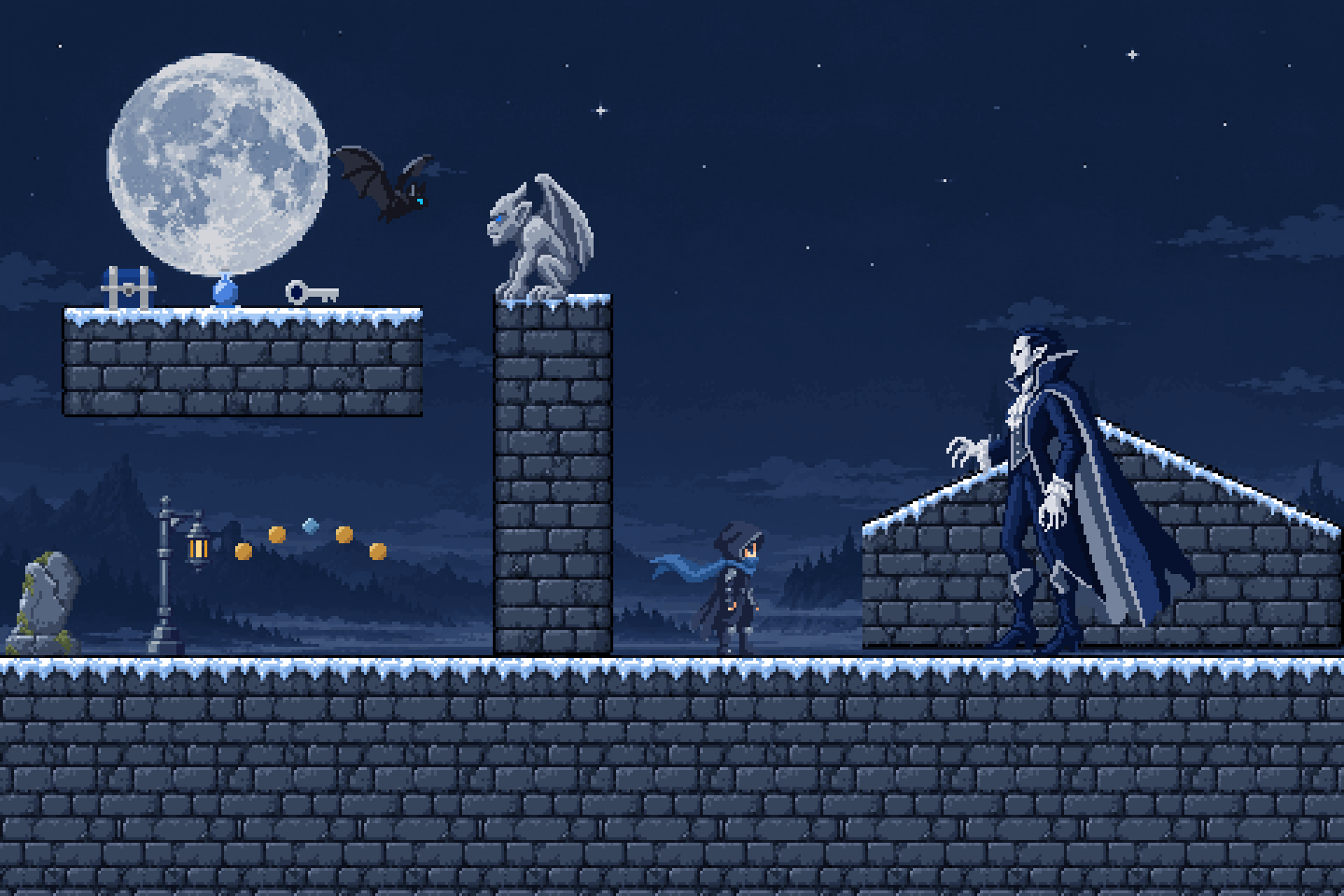
Every sprite in this level came out of one pixelart.dev project and stands at the size it was generated. Hover over a sprite to read its real pixel size, or show every measurement at once.
On this page
Most AI pixel art fails as a set, not as a picture
A generated sprite can look excellent on its own and still be wrong for your game. It comes back at the wrong size, lit from the other side, wearing a different outline, and drawn on a pixel grid that does not match the hero standing next to it.
None of those problems show up when you judge assets one at a time, which is how most people judge them. They show up the moment the assets share a screen. This guide walks through nine decisions that keep a set coherent, using the moonlit castle above as the running example. Every sprite in that level was generated in one pixelart.dev project, and every number on this page was measured from the files themselves.
The decisions apply in any tool. Where pixelart.dev automates a step, the guide says so, and it also tells you how to do the same thing by hand.
Step 1Pick one camera before you draw anything
The camera is the decision that is most expensive to change later, because every asset inherits it. A chest drawn from above will never sit right beside a hero drawn in profile, however well both are drawn. Choose the camera your gameplay needs, write it down, and put it in every prompt.

Side view
Platformers and side scrollers use it.

Top down
Adventure games and roguelikes use it.

Front view
Portraits, icons and UI use it.

Isometric
Tactics and city builders use it.
The castle set uses side view, because it is a platformer. In a pixelart.dev project, the camera is a project setting, so every generation in the project is told the same thing without you repeating it.
Step 2Measure everything against the hero
Pick the height of your main character in pixels, and size every other asset as a fraction or a multiple of it. That single number is your ruler. In the castle set, the hero is 48 pixels tall, a coin is an eighth of that, and the boss is about two and a half heroes tall.
Shown at 1× zoom
 Coin 6 px
 Potion 14 px
 Chest 16 px
 Gravestone 37 px
 Hero 48 px
 Lantern 57 px
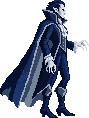 Vampire boss 118 px
The second view is the trap that catches most AI workflows. Image models draw whatever you ask for at roughly the same size on the canvas, so a coin and a dragon come back filling the same square. When you shrink them afterwards by an arbitrary amount, their pixels no longer match, and the set looks like a collage even when every piece is good.
| Asset | Size in pixels | Height against the hero |
|---|---|---|
| Coin | 6 × 6 | 0.13× |
| Key | 19 × 9 | 0.19× |
| Potion | 9 × 14 | 0.29× |
| Chest | 20 × 16 | 0.33× |
| Bat | 37 × 28 | 0.58× |
| Gravestone | 27 × 37 | 0.77× |
| Gargoyle | 38 × 45 | 0.94× |
| Hero | 41 × 48 | 1.00× |
| Lantern | 24 × 57 | 1.19× |
| Vampire boss | 89 × 118 | 2.46× |
Write a table like this for your own game before you generate the second asset. When something comes back the wrong size, regenerate it at the right size instead of rescaling it, because only whole-number scaling keeps the pixels square. pixelart.dev sizes each asset type against the project's ruler for you, so a pickup and a door are asked for at different sizes from the start.
Step 3Fix the light, the outline and the pixel size
Left to itself, a model lights each asset from wherever it likes and outlines it however it likes. A hero lit from the left beside a chest lit from the right is the single most common reason a set looks assembled rather than drawn. Decide three rules and never break them:
- Light comes from one side. Top left is the convention, and it is a safe default.
- Outlines follow one rule. You can use none, a dark line or a colored line, but a set should never mix them.
- Every pixel is the same size. A sprite with chunky two-by-two pixels next to one with fine single pixels breaks the illusion faster than any color mismatch.
The easiest way to hold those rules is to keep them in one paragraph that you paste into every prompt. Build yours below and copy it into whatever tool you use.
Your style block
Make a pixel art game asset on a transparent background, with crisp single pixels and no anti-aliasing.
Draw it in side view, as a true profile facing right, with no perspective distortion.
Light it from the top left, so highlights sit up and left and shadows fall down and right.
Use no outline, so shapes separate by contrast alone.
Keep the palette to cold moonlit blues and stone greys, with warm lantern orange as the only accent.
The hero is 48 pixels tall, so this item should be about 16 pixels tall.
In a pixelart.dev project, the camera, light, outline and style prompt are project settings, and they are added to every generation automatically.
Step 4Keep one palette family, and check it
A small palette is what makes pixel art look intentional. Each sprite should use a handful of colors, and the colors across the set should come from one family. You do not need one identical palette for the whole game unless you plan to recolor sprites by swapping palettes. You do need every asset to agree on temperature, saturation and where the accent colors go.
Two numbers are worth checking on any sprite you are about to ship. The first is the color count, which should be small and should not creep up as the set grows. This set was generated before pixelart.dev began merging near-identical shades, and every sprite came back with 48 colors, most of them steps too close to tell apart. The versions on this page have been through the same merge that Rebuild applies today, which took the hero from 48 colors to 12 and the gargoyle from 48 to 5 without a visible change. The second is the number of half-transparent pixels, which should be zero. Soft, half-transparent edges are the fingerprint of an image that was painted at high resolution and shrunk, and they turn into a grey halo the moment the sprite stands on a different background.
Step 5Approve one anchor asset and reference it every time
Text alone cannot hold a style steady across fifty generations, because two prompts that read the same to you can read differently to a model. An image can. Generate your hero first, iterate until it is right, and then attach it as a reference to every generation that follows.


Choose the anchor carefully, because everything inherits its mistakes as well as its strengths. A good anchor has the outline, light and palette you want, and it is drawn at the ruler's size. As the set grows, approve a few more references of different kinds, such as one prop and one tile, so the model sees the style applied to more than one shape. In pixelart.dev you approve references at the project level, and you can also point a single generation at one earlier asset when it needs a stronger match.
Step 6Generate related assets together
Assets that are generated in the same image share everything by default: the same light, the same pixel size and the same palette. When you need four buildings, nine food items or eight animation frames, ask for them as one sheet instead of as separate generations.
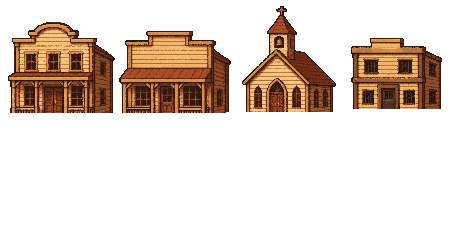

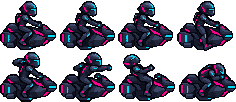
Sheets have a practical ceiling. Past a dozen or so cells, each item gets fewer pixels of the canvas, so split large sets into themed sheets of related things, such as weapons, food or furniture, rather than one enormous grid.
Step 7Test every asset in a level before you make more
Judging sprites on a blank background is how inconsistent sets get built. As soon as you have a hero, a ground tile and two or three props, put them in a mock screen at game scale and look at the screen as a whole. Then do the two checks that artists have used for decades: remove the color, and blur your eyes.
The castle set passes the scale and lighting checks, but it fails the squint test in two places, and that is the point of running it. Catching a readability problem now costs one regeneration. Catching it after you have built forty assets around it costs forty.
Step 8Rebuild every output on a real pixel grid
Image models do not draw pixel art. They paint a large picture that looks like pixel art, with blocks that drift in size, edges that blend into their neighbors, and a background painted in rather than left empty. Drag the handle to compare a raw output with the sprite rebuilt from it.


A rebuild does four things, in this order:
- It finds the size of the blocks the model painted, which here is about six and a half image pixels.
- It samples one color per block, which turns the 512 by 512 painting into a 78 by 78 sprite.
- It reduces the colors to a small fixed palette, so near-identical shades collapse into one.
- It removes the background and makes every pixel either fully opaque or fully transparent.
You can do this by hand in any pixel editor by measuring the block size, scaling down with nearest-neighbor by exactly that factor, reducing the colors and erasing the background. pixelart.dev runs these steps on every generation, and rebuilding again with different settings is free.
Step 9Import the set without blurring it
A perfect sprite can still look wrong in the game, because most engines smooth textures by default. Smoothing is right for photographs and wrong for pixel art. Three settings matter: the texture filter, the zoom, and the number of pixels per world unit.
The fix is the same everywhere. Turn texture filtering off, keep the same pixels-per-unit for every sprite, and scale the whole game by whole numbers. Here is where those settings live in each engine.
- 1 Open Project Settings and set Rendering › Textures › Canvas Textures › Default Texture Filter to Nearest.
- 2 Under Display › Window › Stretch, set Mode to viewport and, on Godot 4.2 or later, Scale Mode to integer, so the whole screen grows by whole numbers.
- 3 Turn on Rendering › 2D › Snap › Snap 2D Transforms to Pixel so sprites never land between pixels.
- 4 For a sheet, set the Sprite2D’s Hframes and Vframes to its columns and rows, or use Add frames from sprite sheet in a SpriteFrames resource.
- 1 Select the PNG and set Texture Type to Sprite (2D and UI).
- 2 Set Filter Mode to Point (no filter) and Compression to None.
- 3 Give every sprite the same Pixels Per Unit, such as your tile size, so one sprite pixel is the same size everywhere.
- 4 For a sheet, set Sprite Mode to Multiple and slice it in the Sprite Editor with Grid By Cell Size.
- 5 Add a Pixel Perfect Camera to the camera and give it the same Assets Pixels Per Unit.
- 6 Save one correct import as a Preset and set it as the folder’s default in the Preset Manager, so the next hundred sprites import the same way.
- 1 Open Game Options for each target platform and, under Graphics, turn off Interpolate colours between pixels.
- 2 Import a sheet from the Sprite Editor with Image › Import Strip Image, then enter the frame size and frame count.
- 3 Keep the viewport a whole-number multiple of the camera size, such as a 1920 × 1080 viewport over a 480 × 270 camera.
- 1 Enable the Paper2D plugin.
- 2 Right-click the imported texture and choose Sprite Actions › Apply Paper2D Texture Settings, which turns off filtering and compression meant for photos.
- 3 For a sheet, choose Sprite Actions › Extract Sprites and use Grid mode with the cell size.
- 4 Set Project Settings › Paper2D › Default Pixels Per Unreal Unit once, and keep every sprite on it.
Menu names follow Godot 4.3, Unity 6, GameMaker 2024 and Unreal Engine 5.4, so older versions may place them elsewhere. pixelart.dev exports transparent PNGs at their native size, so the files are ready for these settings as they are.
Run this checklist before an asset joins the set
Every step above becomes one check. Tick them off for each new asset, and your ticks will stay in this browser until you clear them.
0 of 9 checked
If you are choosing between tools, read the comparison with PixelLab next. It covers which tool fits which kind of game.
Comparison pixelart.dev vs PixelLab: an honest comparison